How to Fix Lag and Disconnects on a Wireless Mechanical Keyboard
Published How we research
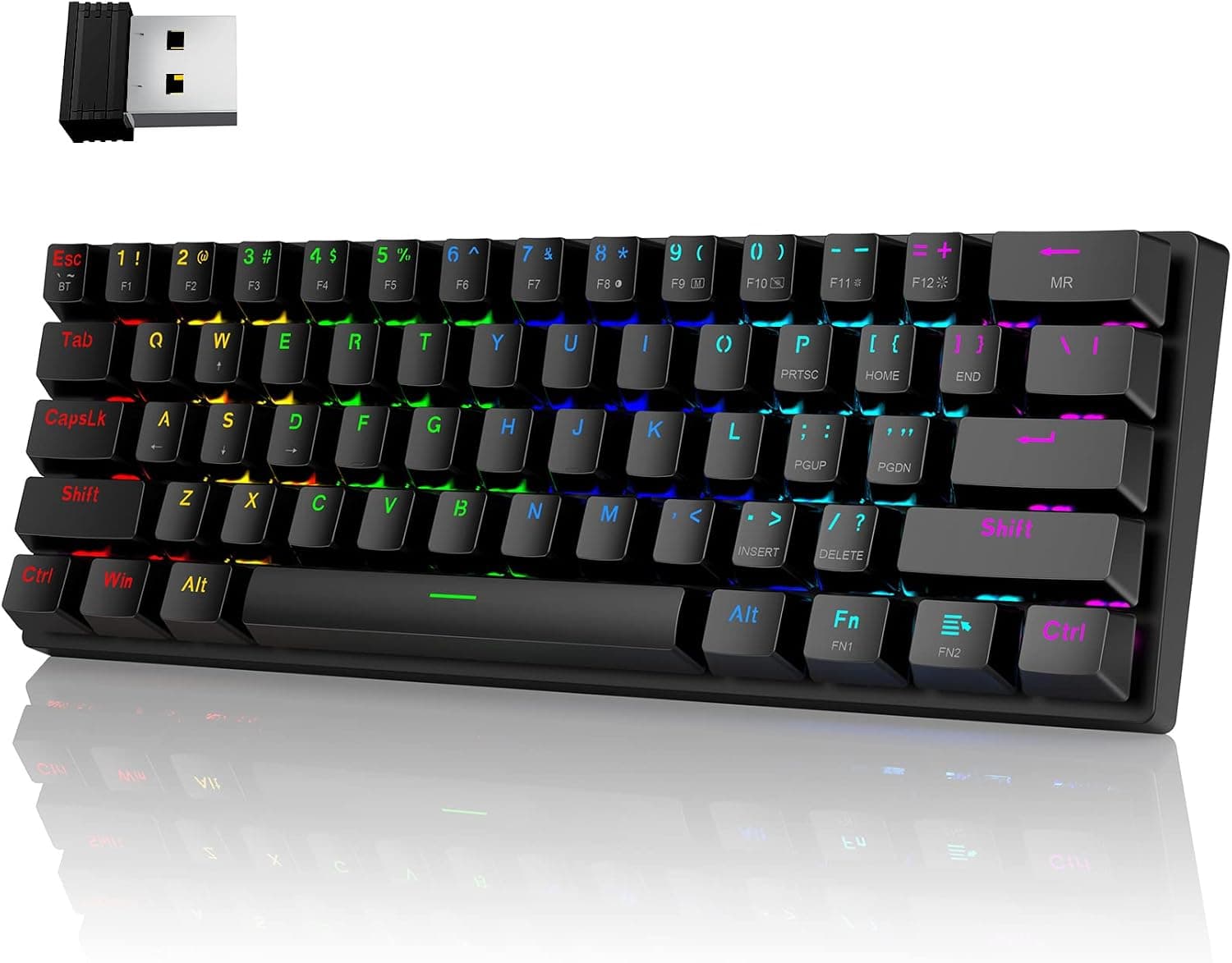
Modern wireless mechanical keyboards can be as responsive as wired boards, but interference, power-saving features and connection settings sometimes cause lag, missed keys or dropouts. Most problems can be fixed by improving the connection path, updating firmware and choosing the right wireless mode for your use.
Products from this article
The highest-scoring picks from the buying guides this article links to. Scores are our editorial assessment, not customer ratings.
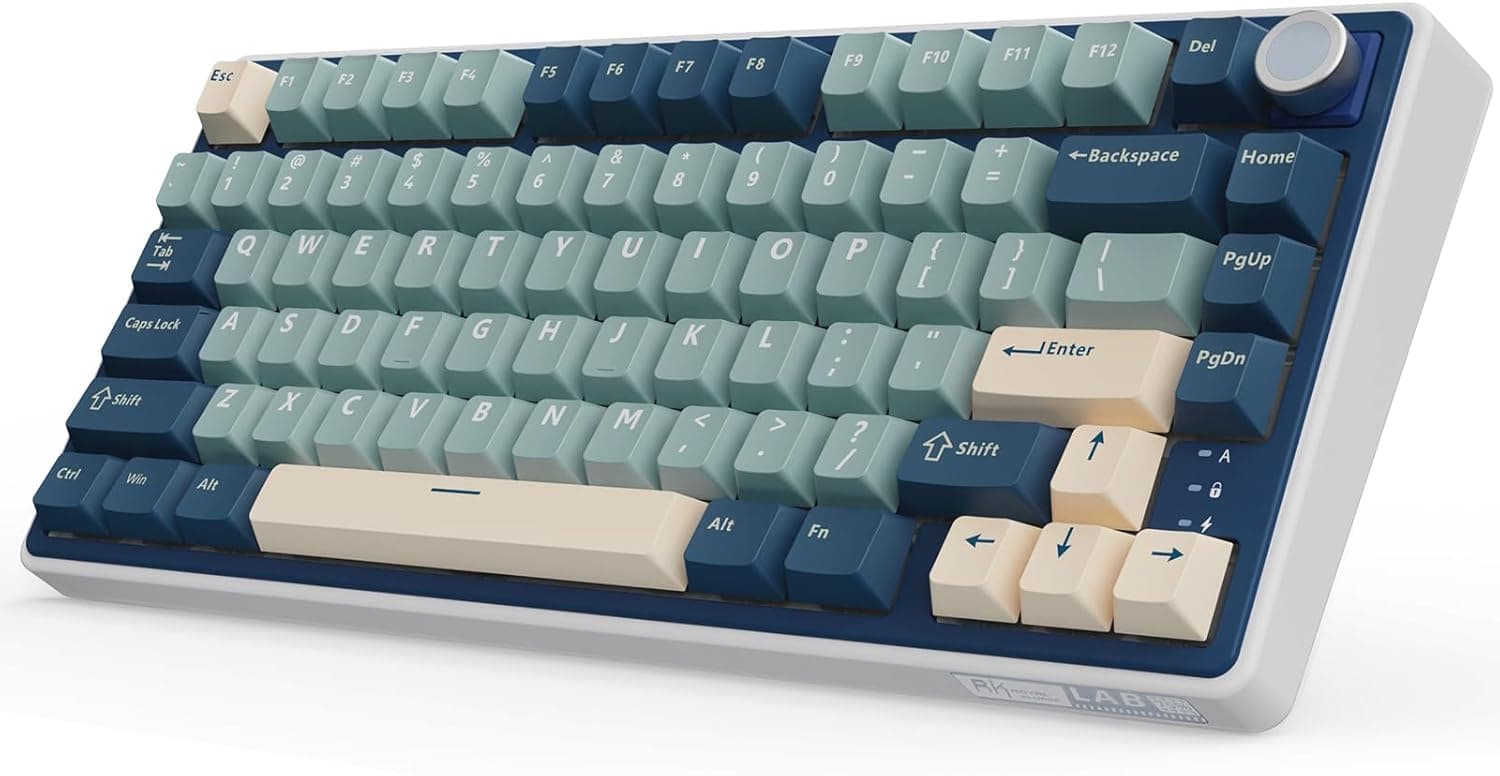
+ Gasket mount softens bottom-out and gives a cushioned, more premium typing feel
From our guide: Best Wireless Mechanical Keyboards (2026)
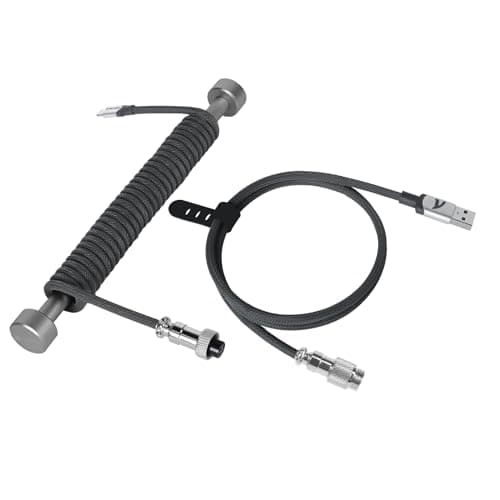
+ Four copper wires with aluminum shielding foil, with reinforced joints for stable transfer.
From our guide: Best USB-C Cables (2026)
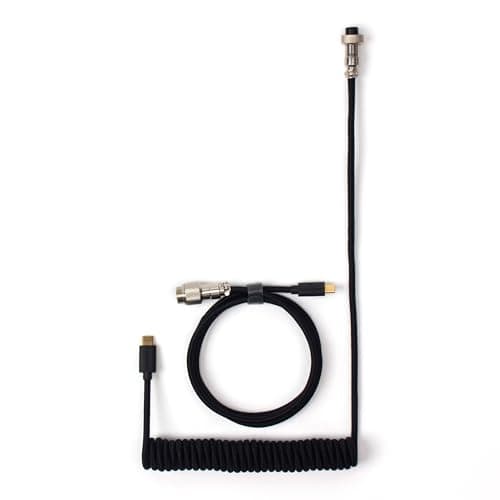
+ USB-C cable with a USB-A adapter included, so it works with either port type on the computer
From our guide: Best Coiled Cables (2026)
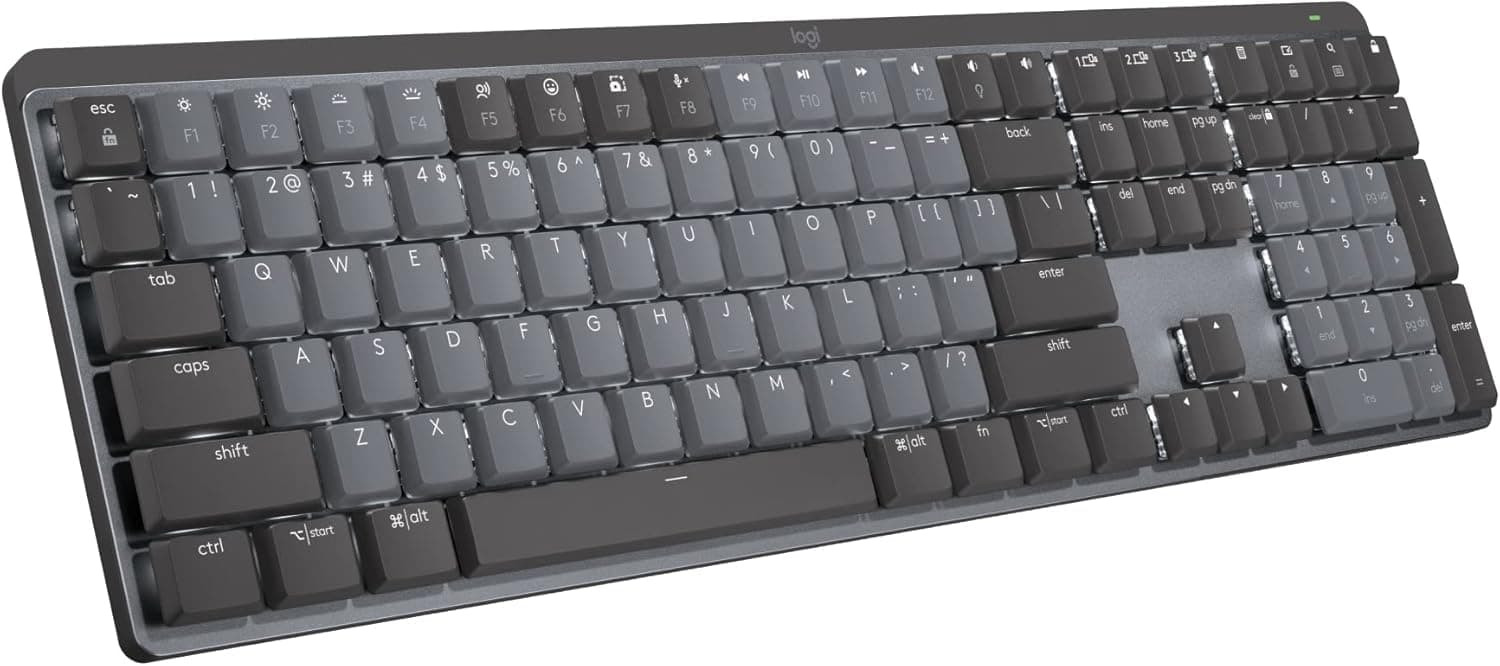
+ Logitech wireless and multi-device pairing are reliable for switching between work laptops
From our guide: Best Wireless Mechanical Keyboards (2026)

Use the right connection mode
Many keyboards offer both 2.4GHz wireless with a USB receiver and Bluetooth. The 2.4GHz dongle typically provides lower latency and a more stable connection, making it better for gaming and fast typing.
Bluetooth is convenient for switching between devices, but it can be more prone to delay and connection drops, especially with multiple Bluetooth devices nearby.
Improve receiver placement
USB ports on the back of desktop computers are often blocked by metal cases and cables, weakening the signal. Use a USB extension cable or adapter to place the receiver closer to the keyboard, ideally within a short, clear line of sight.
Avoid plugging receivers next to USB 3.0 devices and ports, which can create radio interference in the 2.4GHz band. Wi-Fi routers, wireless mice and other receivers can also interfere.
Check battery and power settings
Low batteries can cause intermittent connection problems. Charge the keyboard fully and see if performance improves. Some keyboards reduce polling rate or wireless strength when battery is low.
Sleep modes save battery but can cause delays when waking. Adjust sleep timers in the keyboard software, and on computers disable USB selective suspend or Bluetooth power saving settings if disconnects persist.
Update firmware and drivers
Manufacturers release firmware updates that improve wireless stability. Check for keyboard and receiver firmware updates through official software, and update Bluetooth drivers on your computer.
Re-pair the keyboard with the receiver or Bluetooth device after updates. Removing old pairings from the computer's Bluetooth list and pairing again can resolve persistent issues.
Switch to wired when needed
For competitive gaming or when troubleshooting, connecting the keyboard with a USB cable eliminates wireless issues and charges the battery at the same time. Use a quality USB-C cable that supports data.
If the keyboard still lags or drops keys while wired, the issue may be hardware or software rather than wireless interference.
Popular right now
- What Is a Hot-Swap Keyboard and Why It MattersArticle
- Best Ortholinear Keyboards (2026)Buying guide
- North vs South Facing SwitchesArticle
- What Are QMK and VIA? Keyboard Firmware ExplainedArticle
- Linear vs Tactile vs ClickyArticle
- Mechanical Keyboard Switch ChartArticle
Based on the last 28 days of search and visitor data.